Selecting New on Licensing Applications
Major changes occasionally occur with a license that warrant the need to submit a “New” application. Note: When someone chooses this option, a new license number and consent forms will be assigned to the location in place of the previous license number.
Some examples of when to submit a new application include:
- Home license changed ownership. (First requires current provider admin to send an admin invitation to the new provider admin.)
- Change of child care program location.
- Change of church name/501(c)(3) tax ID.
Note: This particular licensing option is used if the new application is the same type of license, has the same staff and is essentially the same child care program as the previous license number. If the license type has changed (Ex: Switching from a home to a center, opening multiple program locations instead of one, etc.), click Open a New Program instead and notify your licensing consultant of the closure of the previous program. Consent forms need to be redone by everyone at the facility regardless of which option you choose.
WARNING: Do not select NEW on the Change Application Type button unless you meet the criteria listed above. Selecting NEW issues an entirely new license number for the facility and is irreversible on I-LEAD once signed and submitted.
If you need to make minor changes to your license, please check Update license instead. Update changes may include hours, contact information, Class 1 to Class 2 program, director turnover, editing program name, etc.
Before Starting a New Application for an Existing License:
1. Log in to I-LEAD.

2. Scroll down to the Providers section on the I-LEAD dashboard.
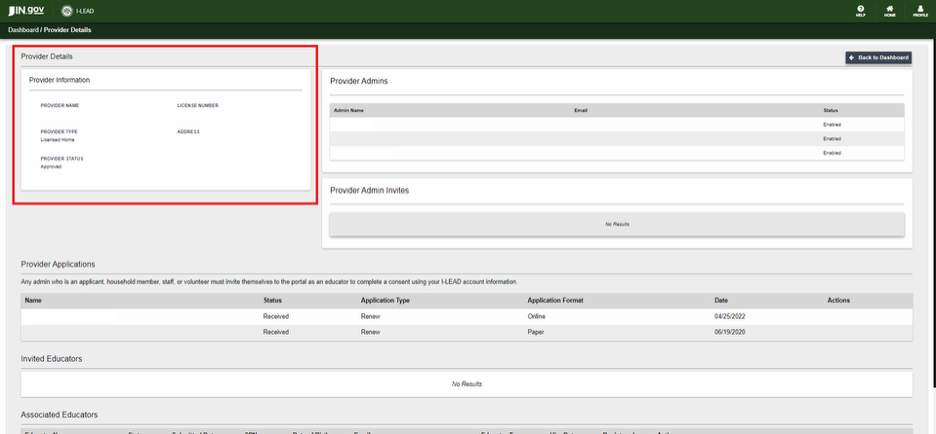
3. Select the child care program you wish to make changes to and click View Details.

4. If you’re switching the application to a new provider, make sure to add them as a provider admin so they can submit the application under the current license. The new provider admin must accept the admin invitation before they will appear in this section. If they don’t appear, send a new admin invitation and ask them to accept it before opening the application.
5. Those who need an admin invitation include:
- New owner of the home.
- Director of the center.
- Pastor/religious leader of the ministry that is renting the space for child care purposes.
- President of the religious organization.
- Principal of the school.
- Managers of the program.
- Any administrative assistants responsible for inviting and removing staff from your license.

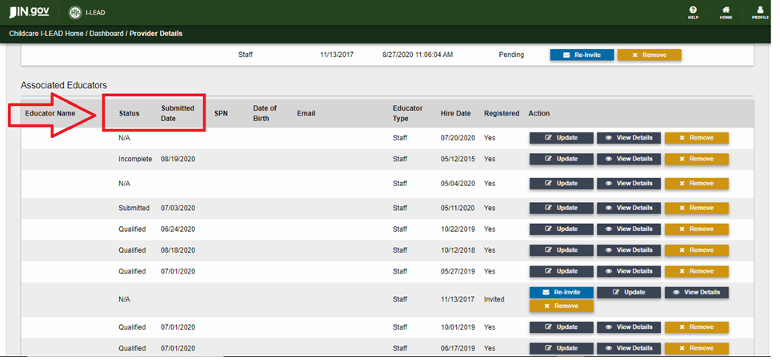
6. Review your associated educator roster: Verify that all provider admins and associated educators are listed on the roster and that staff who no longer work there are removed using the Removed option (Format: MM/DD/YYYY). If anyone is missing, there is an option in the application to add them to the Educators section so long as you have the email address they used to create their own I-LEAD account that belongs solely to them, their date of birth and their legal name. Please see managing educator consent forms for more information.
Completing a NEW Application to Change and Replace an Existing License
1. Click Start Application once all staff and provider admins have completed their required consent forms and are current on their fingerprints.

2. At the bottom of the page, click Change Application Type.

3. Select New License, click Change and then click Save. The paragraph above the application on the first page should clearly state “NEW” if the correct option was selected. This will open all fields on the application to make edits. The type of new application available will vary depending on the licensing application you are working on:
New Exemption: Used for LLEP Homes & Centers
New License: Used for Licensed Homes
New Certification: Used for Centers
New Registration: Used for Unlicensed Registered Ministries
- Note: Once you’ve selected New License and clicked Save, you will be able to complete the application as if you were starting a new program on I-LEAD. However, many sections may still have pre-filled information and show the previous educators. Make edits as needed. The next sections will cover common sections of the application.

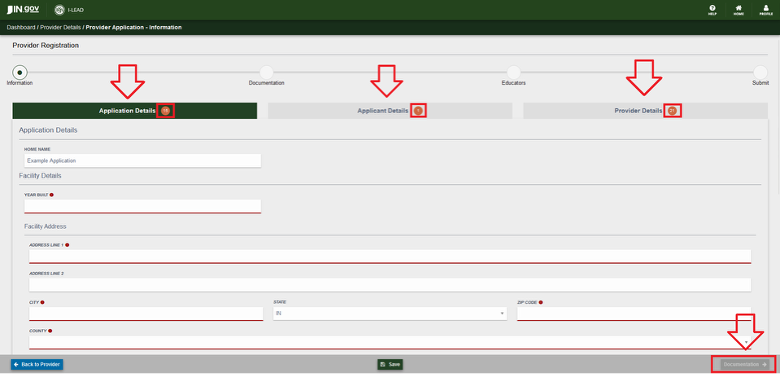
4. Information: This is the first page of the application. It is split into three categories: Application Details, Applicant Details and Provider Details. Application Details is the first box highlighted in green at the top of the page when the application is opened. After completing this section, click on the other boxes at the top of the page to access the other categories.
|
Application Details |
Applicant Details |
Provider Details |
Application Details: This section primarily focuses on information about the facility and services offered at the program. Changes that can be made to this page include:
- Name of the child care facility on the first line of the application.
- The year the building was built. Note: Zillow offers the history of the property.
- Address where the child care facility operates.
- Mailing address (If a P.O. Box number or different address than the program.)
- Questions regarding whether the program will take OMWPK or CCDF vouchers.
- The water source of a child care facility. (Public for city water or Private for well water; well water needs a well test from the health department.)
- Class 1 (Max capacity 12 children enrolled) or Class 2 (Max capacity 15 children enrolled) for child care homes.
- Date that Orientation 2 was completed through Indiana Learning Paths by the applicant completing the form (Date Format: MM/DD/YYYY).
- Other questions related to exemptions or church affiliation.
- Auspice.
Applicant Details: This category varies depending on the type of child care program. Individuals are required to enter the following information in this section, depending on license type:
- Licensed & LLEP Centers: The director and their contact information, contact information for the board of directors and the person or people running the child care program.
- Licensed & LLEP Homes: The household members living on the property where a home child care program operates. Anyone who is 18 years or older and/or helps with the children needs to be added as an educator and complete a consent form.
- Ministries: The director and board members who assist with decisions for the child care program as well as the pastor/religious leader/president. The same title used for the religious leader should also be used on the final signature page.
- Nanny Care: The parent, the children in the home and the nanny who will work at the parent’s home. Both the parent and the nanny need to be listed as educators and complete consent forms. The parent is the applicant. If the parent who has the voucher changes and still wishes to hire the same nanny, the new parent needs to log in from an admin invitation sent by the previous parent. Once they have access to the exemption, the new parent needs to complete a ‘new’ exemption application via “Change Application Type” and receive a new exemption number.
Provider Details: This section is where providers input details and that are then used to update the Child Care Finder site upon application submission and approval. It's also where LLEPs record the reason their program would qualify for a licensing exemption.
Changes to this page include:
- Email address parents can use to inquire about child care services.
- Phone number to call the program.
- Ages of children served. (Put at least a 1 if the age is covered by the program and a 0 if excluded.)
- Desired capacity which is the number of children the program would like to serve and enroll.
- The minimum age group to the oldest age group the program serves.
- Days and times the program operates. These must be within range of 12:01 a.m.-11:59 p.m. for a single day. (There are closed and 24-hour check marks available per day for selection.)
- Program exemption reasons (select only one).
Note: All three sections must be completed before the application will provide the Documentation button to proceed to the next section.
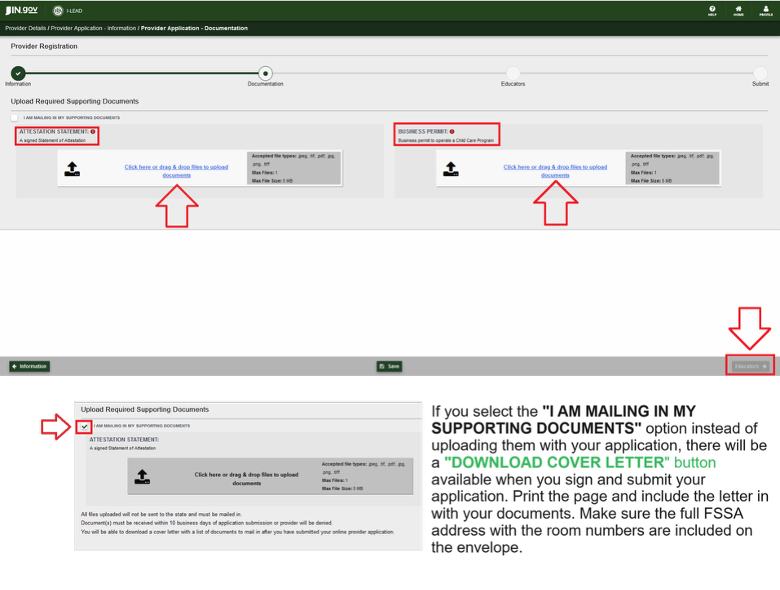
5. Upload your documentation or click the box to mail it instead. For a list of commonly required documents and upload tips, see Documentation for Applicants for more information.
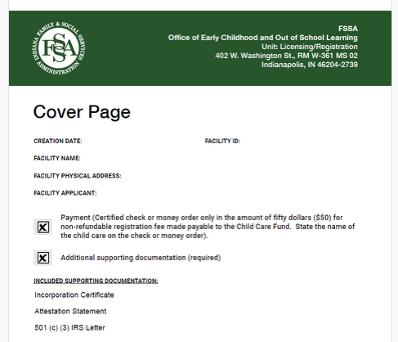
Note: If you select the “I am mailing in my supporting documents” option, once you sign and submit your application, use the “Download Cover Letter” option to download and print. Print off the cover letter and include it with copies of your documents. Include the FSSA’s full address with room numbers to ensure the documents reach the right office. Documents must be mailed within 10 calendar days after the application is signed and submitted.
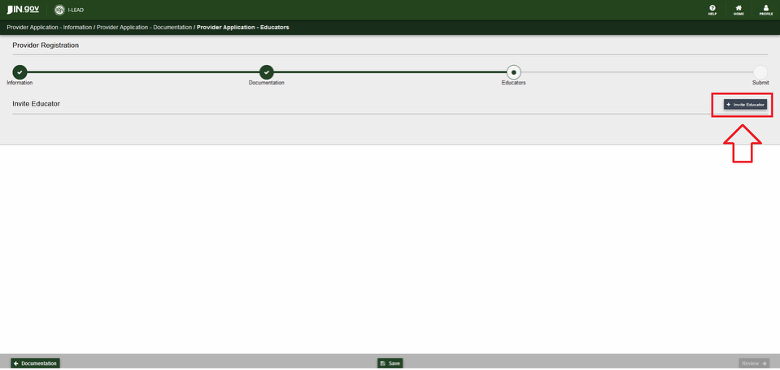
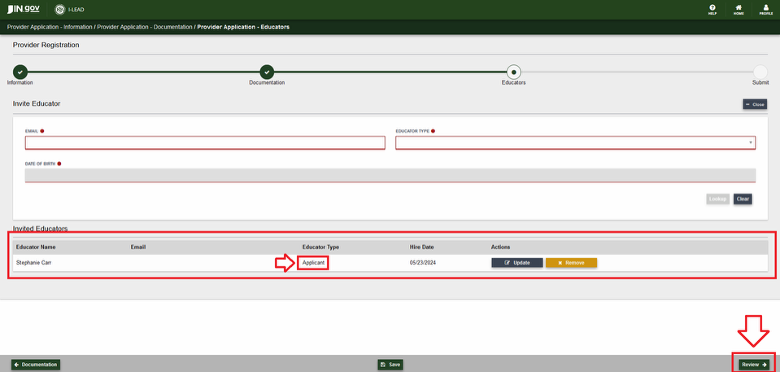
6. Educators: This section reflects everyone who previously worked at the child care program or who helped with the licensing applications. Only new staff who aren’t on the Associated Educator section should be left in the Invited Educators section.
On a “New” application, this section should pre-populate everyone who was already listed on the old associated educator roster for the new one. Remove staff as needed by clicking Remove and entering their termination date (MM/DD/YYYY). Please make sure any new provider admins are added to this section as “Applicant” also.
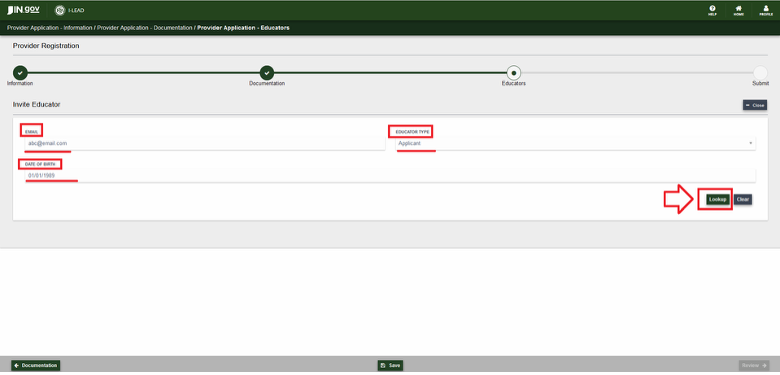
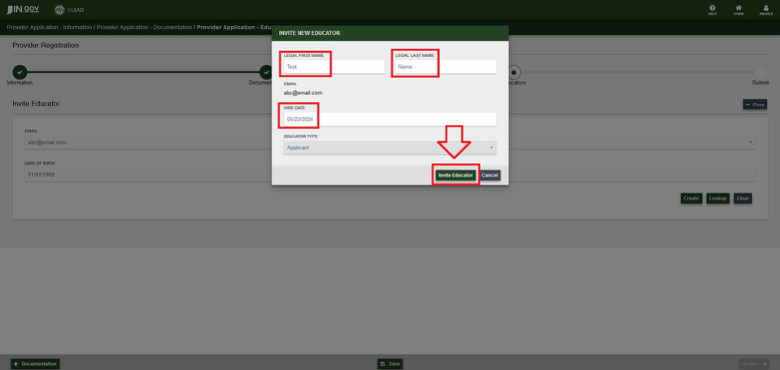
Each new person you add to the Invited Educators section needs their own I-LEAD account with an email address that isn't shared with anyone, so they can do their consent forms and complete their background checks. To fill out this section, you’ll need to enter each person’s:
- Email address.
- Educator type.
- Date of birth (MM/DD/YYYY).
- Legal first and last name (as depicted on government documents).
- Hire Date (MM/DD/YYYY).
Note: When the application is signed and submitted, all existing staff on the Associated Educator roster will be prompted to redo their consent form for the new license. For new staff to have access to their consent form, please advise them to accept their educator invitations to be connected to the license and have access to their consent forms.
Note: Those who fill out the attestation form and the licensing application should also include themselves on the application with the educator type of Applicant. This will allow the Review button to appear if it is grayed out. Anyone who is supposed to work at the facility but joins after the application is submitted or is mistakenly left off the application can be invited as an educator.
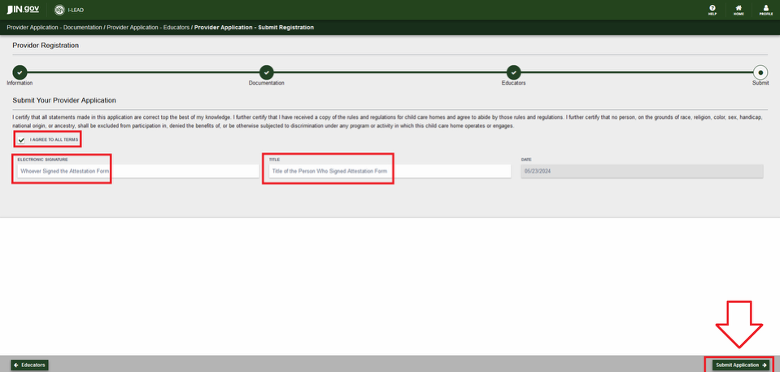
7. Submit: This section should be signed and submitted by the applicant who filled out the attestation statement. The attestation statement and signature should be signed by the owner for a home, the director for a center or the pastor/religious leader for a ministry. If you need to add them, click the Educators button to go back and add them as an applicant.
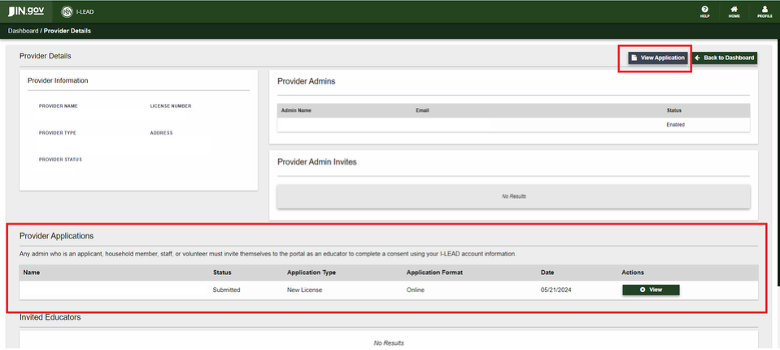
Submission Confirmation: If the application was successfully submitted, the Start Application or Edit Application button will change to a View Application button on the admin page. I-LEAD will also change the status in the Provider Applications section from “Draft” to “Submitted” and show the date your application type was sent. If successful, a new license number will generate immediately in the Provider section of your I-LEAD dashboard. Click Home and check the Provider section of the I-LEAD dashboard. If it's the same license number as before, please click View Details to go back to the application via Edit Application.
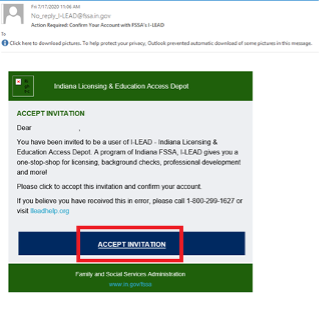
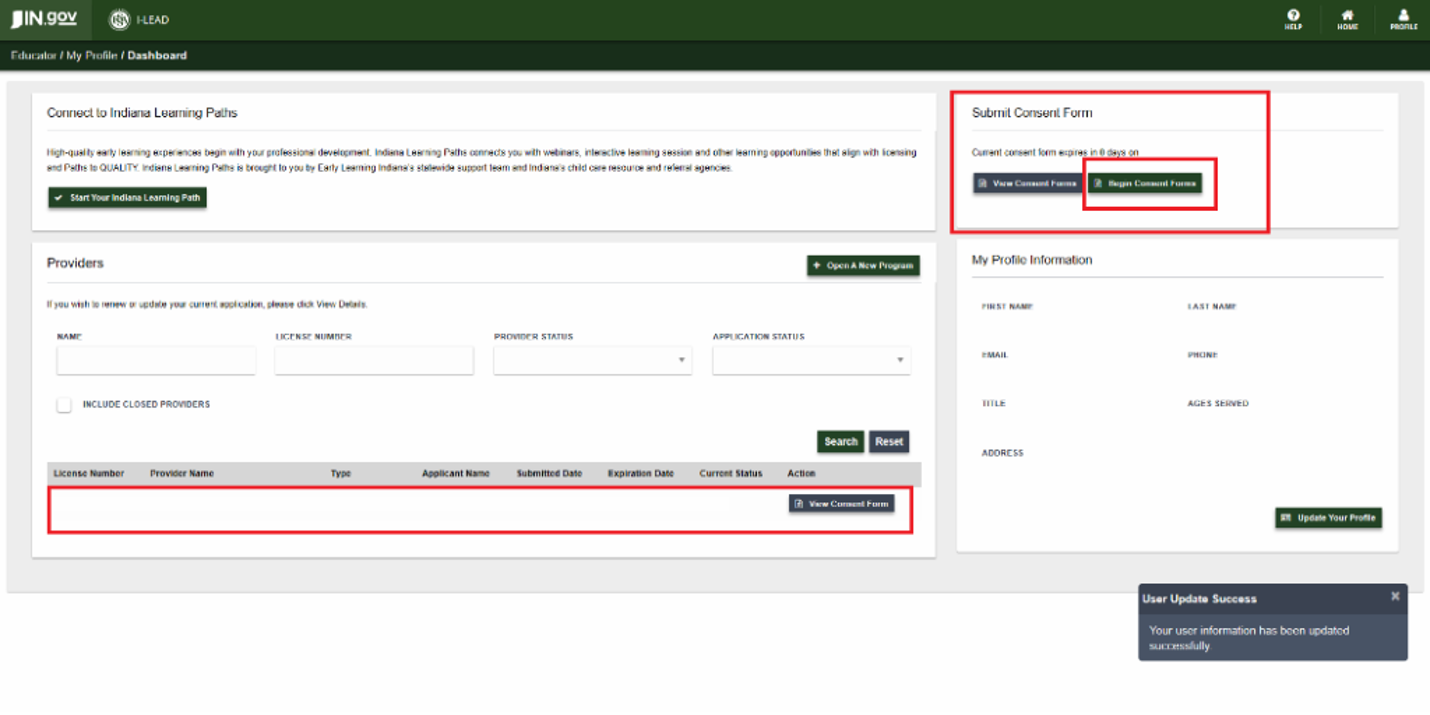
Educator Invitations & Consent Forms Post-Submission: Staff who were only on the Associated Educator Roster section of the application will receive a new consent form to complete for the new license number. Everyone new who was listed on the Invited Educators section of Educators in the application will receive an email from no_reply_i-lead@fssa.in.gov after the application has been signed and submitted. Make sure each person has created an I-LEAD account before they accept the educator invitations sent to their email inboxes. If the educator invitations are successfully accepted, each person will have the license number listed in the Provider section of their I-LEAD dashboard and have a consent form to complete and submit with their fingerprints. New and old staff need to complete these for the new licensing application to be processed. Those educators missing an educator invitation should be invited by the person filling out the application. Once all changes and consent forms for a background check have been completed, the licensing consultant will reach out. New provider admins need to accept both an admin invitation to access the license and an educator invitation to access the consent form for a background check.
Consultant Notes
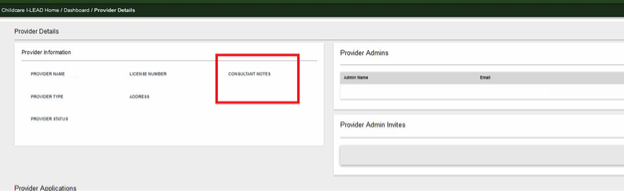
Monitor your email and the View Details or Provider Details section of your license on I-LEAD to see messages from your consultant. If an application requires a change, you may receive an “Incomplete Application” email from no_reply_i-lead@fssa.in.gov, and/or there may be a consultant note in the Provider Information box next to the Provider Admin section. The application may also be in "Edit" mode in the Provider Application section. For an initial inspection and communication, consultants typically communicate by email. The consultant will only schedule an in-person inspection of the premises once all consent forms and licensing paperwork are completed online. Licenses are issued via an admin invitation when all requirements for the child care program are met. Once all changes and consent forms for a background check are complete, the licensing consultant will reach out.
To find your consultant, check out the Consultant Map.