Payments
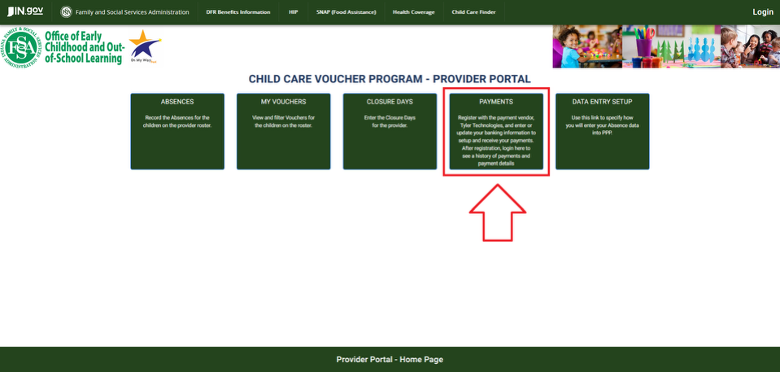
The Payments section of the Parent and Provider Portal (PPP) is where providers can set up their banking and routing information for direct deposit or log in to their banking portal to view payments for the vouchers and Paths to QUALITY™ (PTQ) incentives. Those who already have an account and need to change their banking information should log in first and then change it in the Auto Transfer (pages 6-8) section post-login.
Tyler Technologies:
If you are a provider admin and need to unlock your banking portal, change your logins or reset the banking portal password, reach out to Tyler Technologies with Rapid Financial Systems (RFS) at 1.844.959.7997. (Option 4 for banking, then option 2 for a representative.)

Page Layout
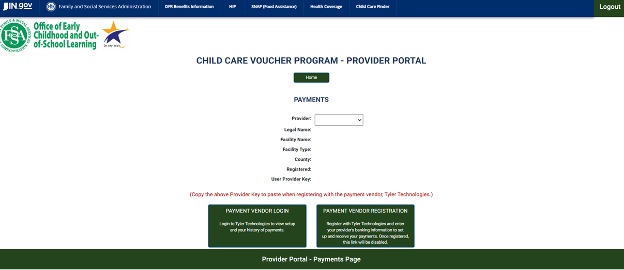
Provider: License number listed on I-LEAD. If the license has an expiration date, is not on probationary status and has multiple sites, providers can select this in the drop-down menu. (If this is a provider’s only program, there will not be a drop-down menu.) If the license is missing, follow up with the licensing consultant to verify that the program is active in the system. Use a compatible browser like Mozilla Firefox
or Google Chrome
if it does not load. If there are still issues, contact paymentquestions@fssa.in.gov for assistance.
Legal Name: Name of the entity/person responsible for the facility. This is generally the same company/religious institution/person that’s listed on the last W-9 form submitted with the licensing application.
Facility Name: Name of the child care program selected; the name is from the I-LEAD licensing application that was last approved.
Facility Type: Type of child care facility for the license selected.
County: The Indiana county in which the program is situated.
Registered: Determines if the license selected in the Provider section has already been registered through provider vendor registration.
- Yes: This means the direct deposit and the banking portal were created successfully using the same email, password, banking information and routing number used during registration on the Payment Registration section.
- No: This means the license selected has not been registered. Providers need to copy the User Provider Key before continuing to Payment Registration to set up the direct deposit and banking portal. To successfully complete the direct deposit registration process, all information in this section must match exactly as it is listed in the Payments section.
Note: Providers must use a checking account for registration; however direct deposit may be linked to a savings account after initial registration.
User Provider Key: This is a unique code associated with every license, even if the same provider has multiple programs. It will always consist of eight digits that have numbers, symbols and upper/lower case letters. (User provider key examples: AB12j%07, MB84$k1, etc.)
Payment Vendor Login: This section is where provider admins (who set up their direct deposit) will log in to view payments and change banking accounts. Logins must match the email and password used during direct deposit setup. If your account is blocked or you need a password reset, reach out to Tyler Technologies (1.844.959.7997; option 4 for banking, then option 2
for a representative) for help with unlocking the account and resetting the password.
Note: Your login is case sensitive. Enter it exactly as you set it up at registration (ex: Stephanie@youremail.com instead of stephanie@youremail.com).
Only the provider who set up the portal has access to it. If the portal needs changed due to a new provider admin, the send an invitation to the new admin’s I-LEAD account. This is the only way the new admin will be associated with the program. Next, one of the provider admins will need to request help with the change of account information from Tyler Technologies (1-844-959-7997; Option “4” for banking, then option “2” for a representative). The provider admin will need the information for both accounts for the change to be approved.
Payment Registration
Register direct deposit information and set up the banking portal for child care vouchers connected to the license selected. If the direct deposit and banking portal have not been set up through this feature, there will be a “No” listed in the Registered section of the Payments page. When registering, use the same information on the Payments page and the User Provider Key to set up your direct deposit and banking account information. Use the following guide to create your account: Payment Vendor Registration (pages 4 & 5).
Note: Your login is case sensitive. Enter it exactly as you set it up at registration (ex: Stephanie@youremail.com instead of stephanie@youremail.com). Microsoft Edge and Safari users should switch to Mozilla Firefox
to avoid login issues or clear cookies and cached images before logging in. (External guide on clearing cookies/cached images by browser type: https://its.uiowa.edu/support/article/719.)
Registration Reminders (Provider Has Not Set Up Direct Deposit)
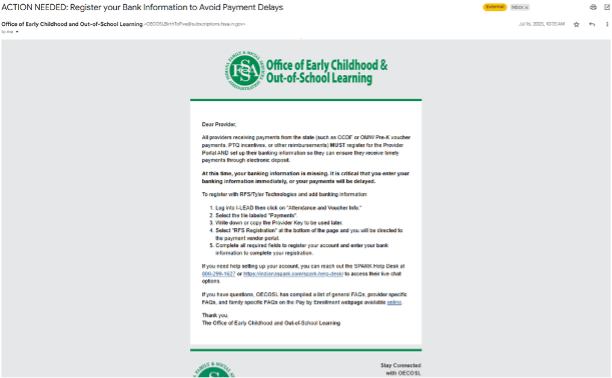
Those who have not set up their direct deposit may receive the following email reminders:
“Dear Provider,
All providers receiving payments from the state (such as CCDF or OMW Pre-K voucher payments, PTQ incentives or other reimbursements) MUST register for the Provider Portal AND set up their banking information so they can ensure they receive timely payments through electronic deposit.
At this time, your banking information is missing. It is critical that you enter your banking information immediately, or your payments will be delayed.
To register with RFS/Tyler Technologies and add banking information:
- Log into I-LEAD then click on Attendance and Voucher Info.
- Select the tile labeled Payments.
- Write down or copy the Provider Key to be used later.
- Select RFS Registration at the bottom of the page. You will be directed to the payment vendor portal.
- Complete all required fields to register your account, and enter your bank information to complete your registration.
If you need help setting up your account, you can reach out to the OECOSL Child Care Support Line at 800-299-1627… to access their live chat options.
If you have questions, OECOSL has compiled a list of general FAQs, provider specific FAQs and family specific FAQs on the Pay by Enrollment webpage available online.
Thank you,
The Office of Early Childhood and Out-of-School Learning”
Viewing Voucher Payments or Changing Banking Account Information:
All payments usually have two transactions for each pay period (“EFT” & “Transfer from OECOSL”). To view the weekly breakdown per child, select the Transaction ID next to the option that says, “Transfer from OECOSL.” Those who also need to change their banking information must log into their account to make the change. For a step-by-step guide on viewing payments or changing banking/routing information, see the following:
Did the Payment Come Up Short or Are You Missing a Payment?
- Verify all absence service periods were submitted on time:
- If a service period is missing a “Submission Date/Time” on the Absences section, or if you click Home at the top of the page and receive the following message, your attendance was never submitted. Go to that service period and submit your attendance.
“Service Period (MM/DD/YYYY) - (MM/DD/YYYY) due on (MM/DD/YYYY). Enter and review absences for this service period and submit.” - Submit service periods from oldest to newest. Make changes to the roster as needed and submit all available service periods as soon as possible. Late submissions delay payments until the next expected date of payment cycle.
- If a service period is missing a “Submission Date/Time” on the Absences section, or if you click Home at the top of the page and receive the following message, your attendance was never submitted. Go to that service period and submit your attendance.
- Check to see when the service period was submitted. If the service period was turned in after the due date, this could delay the payment until the next scheduled expected date.
- Sometimes the week you’re looking at might be a future service period instead of the one scheduled for that date.
- Check the payment schedule to see what service period the expected deposit date is connected to.
- Is a child missing?
- Verify that the expected date for payment matches the right service period. If the child is labelled for a future service period, the payment could be scheduled for a future expected date.
- Normally when the child shows on the roster, the child is added to the start of the Absences section. If the child joins in the middle of a service period or the voucher ends before the end of the service period, they may be listed one week but grayed out for the other. If there are concerns regarding when the child was added, reach out to your CCDF policy consultant for assistance in checking when the voucher paperwork was processed.
- Did a child just leave your child care facility for the scheduled service period?
- You should receive payment for every child with vouchers assigned to your program during that service period. Payments are made 3 weeks in arrears, so they will continue to get payments for a couple of cycles after a child leaves.
- Did a child just join your program?
- Check to see when the child showed up in the service period history on the Absences section. Sometimes a new child might be on a different expected date for payment instead of the current payment cycle.
- Did a family take a break from vouchers and has restarted the program?
- Any time a child goes on or returns from an extended scheduled break at a preschool or child care program, a provider information form may be requested by the eligibility office with the new start date. Check with the family and the CCDF policy consultant to see if the paperwork was processed on time with the new start date.
- Recoupment/Late Corrections
- Children who are no longer attending the child care facility must be reported to the eligibility office within five (5) business days using the Roster Update Submission form. Children who are not removed in time could result in improper payments that need to be recouped from a future payment. All recoupments will be processed no matter how old they are. It is recommended that providers check attendance and payments at least bi-weekly.
Past Payment Schedules:
2025 Service Period Payment Schedule
2026 Service Period Payment Schedule
Need Additional Help?
Should you need any guidance or support, contact the OECOSL Child Care Support Line at 1.800.299.1627, or email Qualitysupport@fssa.in.gov for assistance.
Disclaimer: It is the provider's responsibility to check their vouchers in the provider portal every week and report any discrepancies to avoid improper payments. If a provider is paid for a child who is not enrolled/attending, these payments should be reported to the state as soon as possible, and a recoupment will be processed if the provider still has current vouchers. If the provider does not have any current vouchers, they are responsible for mailing a check to the state and will receive instructions from their policy consultant.